Open the “Download Tool” and accept the Terms and Conditions
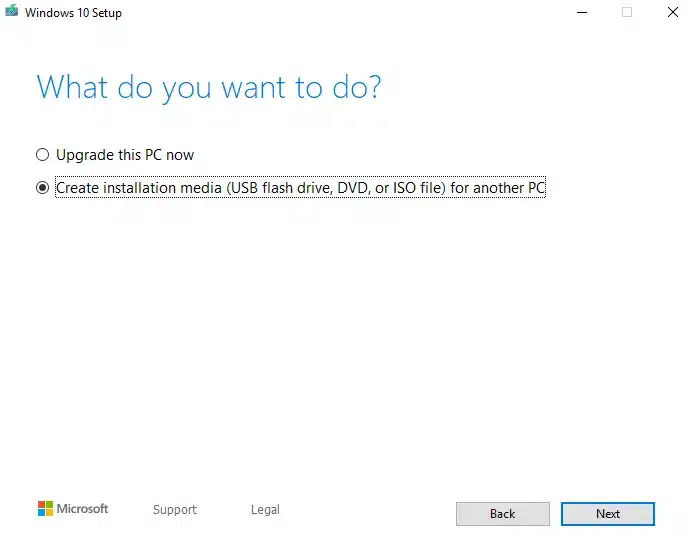
Select the option to create a bootable installation drive.
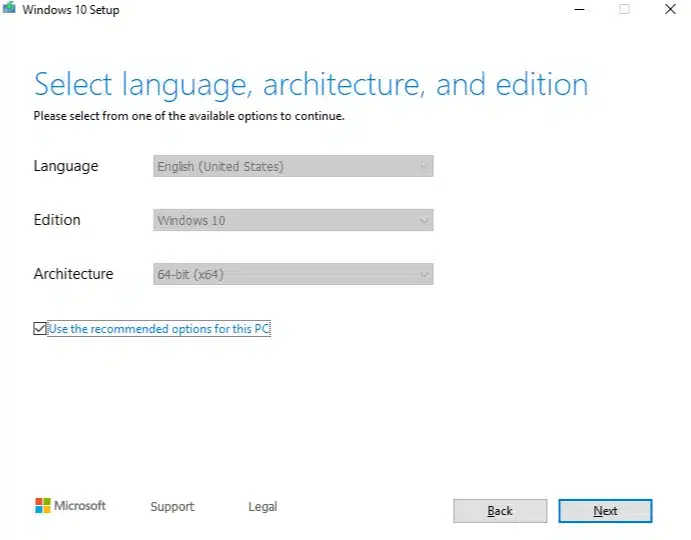
Select the edition and architecture for the Windows 10/11 installation.
The recommended options are based on the computer or laptop from which you are running the Media Creation Tool.
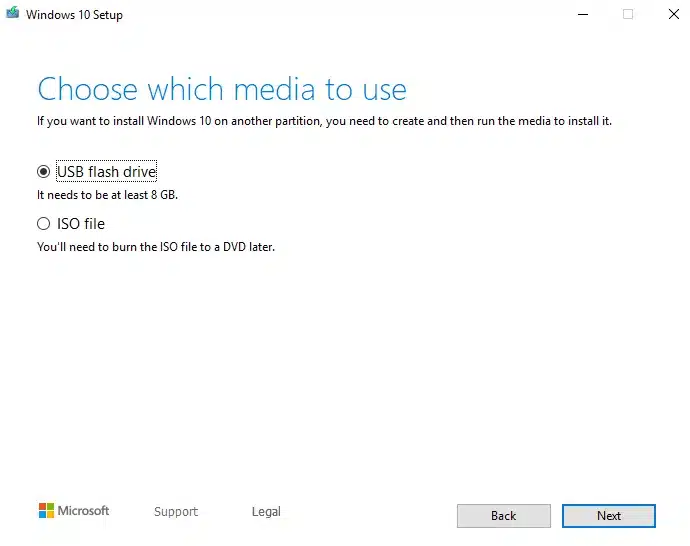
6. Choose between creating a bootable USB drive or an ISO file (for DVD).
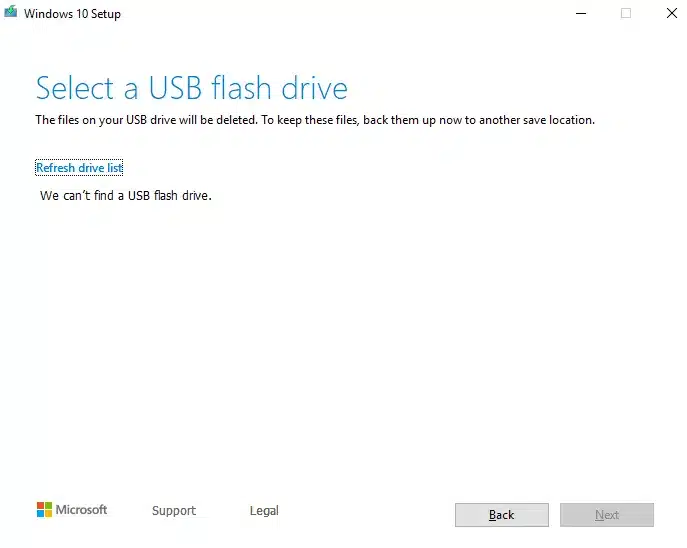
7. Insert a USB drive into your computer, format it, and select it in the tool (USB only).
8. After the process is complete, take the installation media (USB or DVD) and insert it into the computer where you want to install Windows 10/11.
* The computer must be turned off before inserting the USB or DVD media.
9. Turn on the computer.
10. As soon as the computer starts booting, press F1 or F2, depending on your manufacturer’s instructions, to access the BIOS menu.
11. Use the arrow keys on your keyboard to navigate to the Boot Order Menu.
12. Use F4 and F5 to move the desired device (USB or DVD) to the top of the boot order.
13. Exit and save the changes (your computer will restart).
14. The installation process will begin after the system restarts. Follow the steps to install Windows.
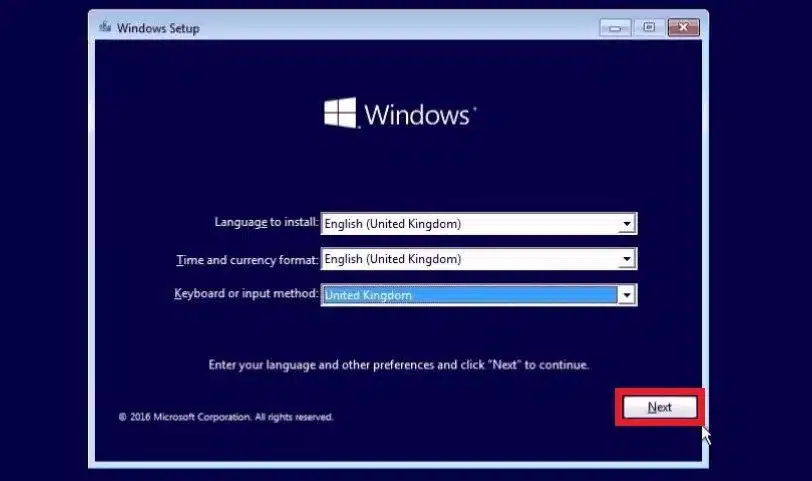
14.1 ЗSet the installation language, time, and keyboard layout as desired, then click Next.
14.2 Now click “Install Now.”
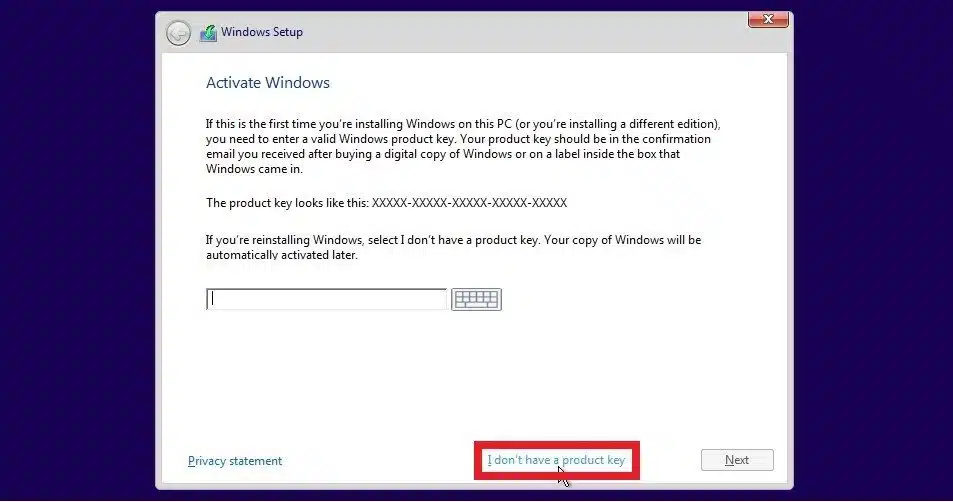
14.3 In the next window, you can enter the product key you received from us. If you prefer to continue without activating your operating system, you can select “I don’t have a product key” and proceed with the installation.
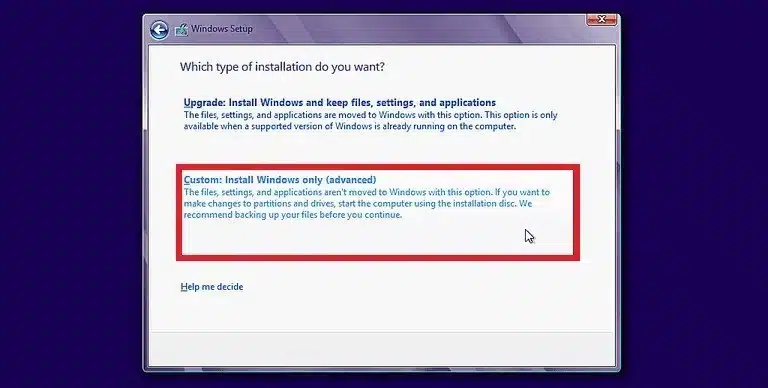
14.4 For a clean installation (deleting your old operating system and files), select Custom: Install Windows only (advanced). To upgrade your operating system (keep your existing files and settings), select the Upgrade option.
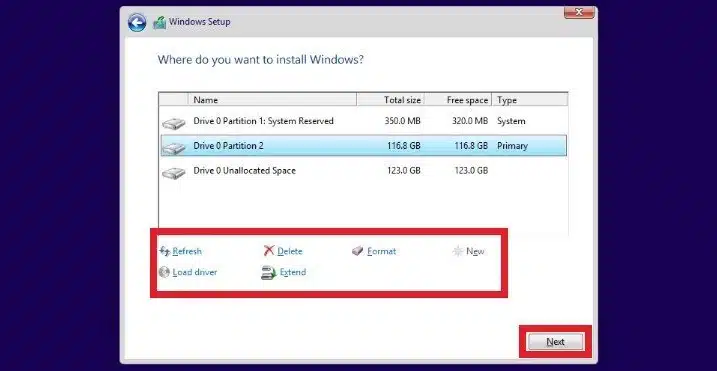
14.5 In the next window, select the hard drive where you want the operating system to be installed. Choose the appropriate drive and click “Next.”
If there is already an operating system on the computer, you can delete the existing data by clicking “Delete” and then install the new operating system. (This step will erase all data on the drive — consider backing it up first.)
14.6 After selecting the hard drive, the operating system installation will begin. At this stage, you’ll need to create your user profile, including the password you want to use to log into your new operating system.
Activation of Windows 10
1.Click on the Start menu on your desktop and select the Settings icon.
Activation of Windows 10
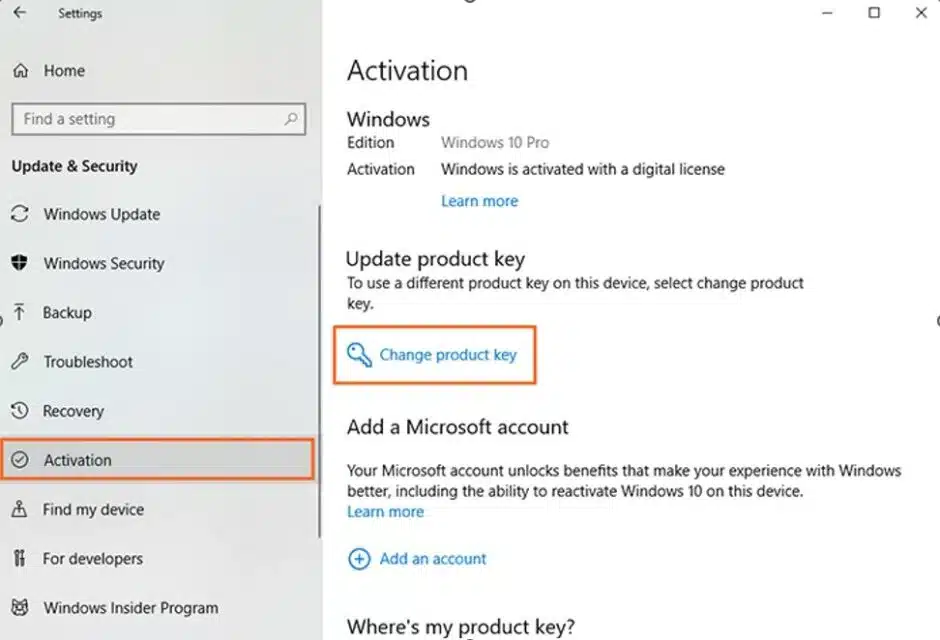
2.Click on Update & Security, then go to Activation.
3. Click on Change product key – a window will appear where you need to enter your product key.
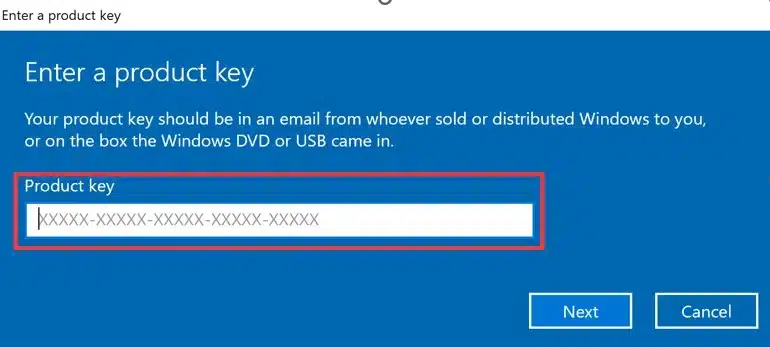
4.Enter the product key you received with your order and click Next.
3. Open the Download Tool and accept the Terms and Conditions.
4. Select the option to create installation media.
5. Select the version and architecture for the installation of Windows 10/11.
The recommended options are based on the computer or laptop from which you are running the media creation tool.
6. Choose between creating a bootable USB drive or an ISO file (for DVD).
7. Insert a USB drive into your computer, format it, and select it in the tool (USB only).
8. After the process is complete, take the installation media (USB or DVD) and insert it into the computer where you want to install Windows 10/11.
* The computer must be turned off before inserting the USB or DVD media.
9. Turn on the computer.
10. As soon as the computer starts to boot, press F1 or F2 (depending on the manufacturer’s instructions) to access the BIOS menu.
11. Use the arrow keys to navigate to the Boot Order Menu.
12. Use F4 and F5 to move the desired device (USB or DVD) to the top of the boot order.
13. Exit and save the changes (your computer will restart).
14. The installation process will begin after the system restarts. Follow the steps to install Windows.
14.1 Set the installation language, time, and keyboard layout, then click Next.
14.2 Now click “Install Now.”
14.3 In the next window, you can enter the product key you received from us. If you prefer to continue without activating your operating system, select “I don’t have a product key” and proceed with the installation.
14.4 For a clean installation (deleting your old operating system and files), choose Custom: Install Windows only (advanced). To upgrade your existing operating system (keeping your old files and settings), select the Upgrade option.
14.5 In the next window, select the hard drive where you want the operating system to be installed. Choose the appropriate drive and click “Next.”
If there is already an operating system on the computer, you can delete the existing data by clicking “Delete” and then install the new operating system. (This step will erase all data on the drive — consider backing it up first.)
14.6 After selecting the hard drive, the operating system installation will begin. At this stage, you will need to create your user profile, including the username and password you want to use to log into your new operating system.
Activating Windows 11
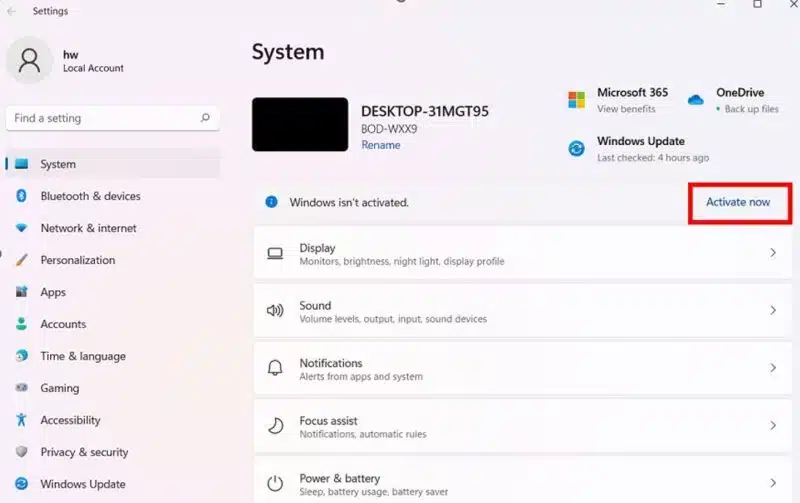
Press Win + I to open the Settings window, then go to System > Activate now.
2. Click “Change” next to “Change product key” and enter your product key.
3.Click on “Change product key” – a window will appear where you need to enter your product key.
4.Enter the product key you received with your order, then click Next.
Step 1: Preparing your computer
Make sure that no previous versions of Microsoft Office are installed on your computer. If there are, uninstall them and restart your computer.
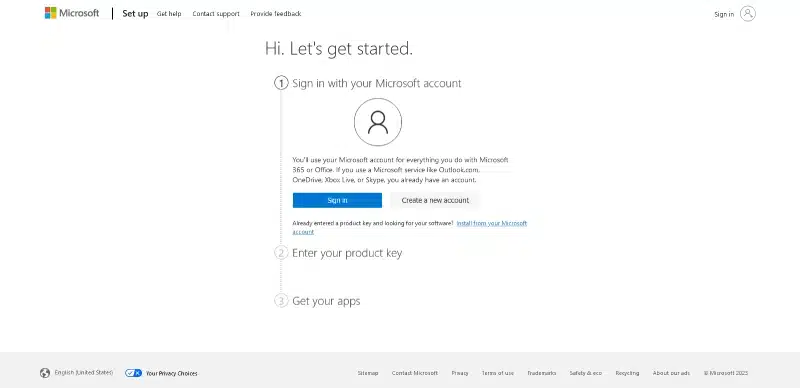
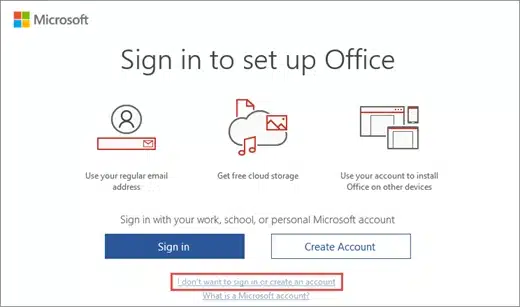
Sign in or create a new Microsoft account. (Note: The key will be linked to the account you use here.)
After signing in, enter the provided key and download the Office setup file.
Step 3: Installation
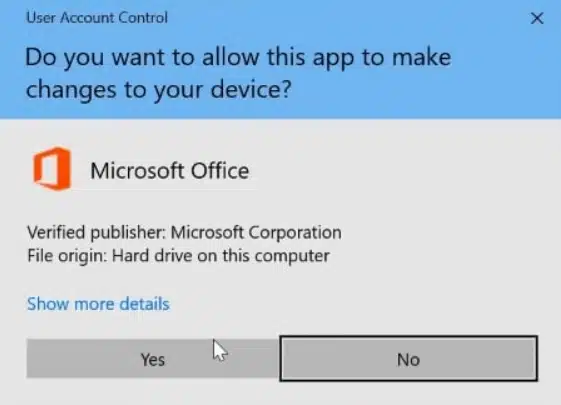
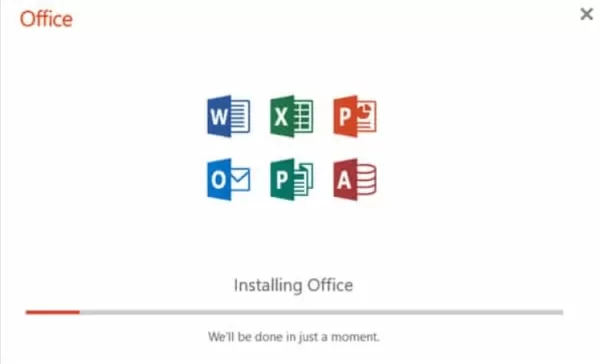
After downloading the setup file, proceed to install Office.
Step 4: Opening Word
After completing the installation, open Microsoft Word.
Step 5: Sign in to your Microsoft account
You will be prompted to sign in with your Microsoft account.
Step 6: Activation
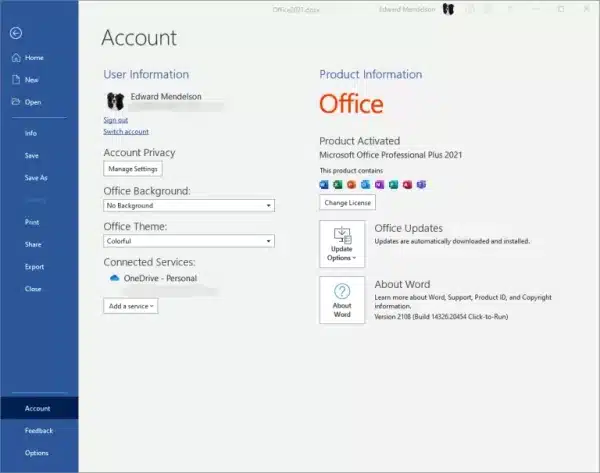
Upon signing in, a pop-up window will appear confirming that your product has been activated.
Congratulations! Your product is now successfully activated.
Step 1: Prepare for installation
Ensure system compatibility: Before starting the installation, check that your computer meets the minimum system requirements for Office Professional Plus 2021. This ensures smooth performance and optimal functionality.
Obtain your product key: Locate your Office Professional Plus 2021 product key, either from your purchase confirmation email or your account.
Step 2: Download Office
Visit the official Microsoft Office website and complete the download of Office.
Go to your Downloads folder or the location where you saved the downloaded file. Find the Office Professional Plus 2021 setup file (it usually ends with .exe for Windows or .img).
Step 4: Run the installation
Double-click the Office Professional Plus 2021 setup file to start the installation.
Step 5: Follow the installation prompts
A setup wizard will open. Follow the on-screen instructions, clicking “Next” as you proceed through the installation steps.
Step 6:
If you prefer to select specific applications to install or change the installation directory, look for the “Customize” or “Advanced” option during the setup process and choose your desired settings.
Step 7:
After customizing your options (if any), click the “Install” button to proceed.
Wait for the installation process to complete — this may take several minutes depending on your computer’s performance.
Step 8:
Once the installation is complete, you may be prompted to click “Finish” or “Close” to exit the installer.
Activate Microsoft Office Pro Plus 2021:
After installing Microsoft Office Professional Plus 2021, you’ll need to activate it. To activate Microsoft Office Professional Plus 2021, open any Microsoft Office application and sign in with your Microsoft account. Then, click the “File” tab and select “Account.” Click the “Activate Product” button and enter your product key.
Step 1: Prepare your computer
Ensure system compatibility: Before starting the installation, verify that your computer meets the minimum system requirements for Microsoft Office. This ensures smooth performance and full functionality.
Get your product key:
Find your Office Professional Plus 2019 product key in the purchase confirmation email
Step 2: Download Office
Visit the official Microsoft Office website and complete the Office download.
Click the “Download” button to start the download process. Please be patient as the software is being downloaded to your computer.
Locate the downloaded file:
After the download is complete, locate the downloaded file — usually named “setup.exe” — in your Downloads folder or the designated download location.
Run the installation wizard:
Double-click the “setup.exe” file to begin the installation process. Carefully follow the on-screen instructions and accept the license terms and agreements.
Customize installation options:
Select your preferred installation options, such as choosing specific Office applications to install or opting for the full suite.
Complete the installation:
After selecting your installation options, proceed with the installation process. The setup wizard will guide you through the steps, ensuring a smooth and successful installation.
Step 4: Activate Office Pro Plus 2019
Launch an Office application:
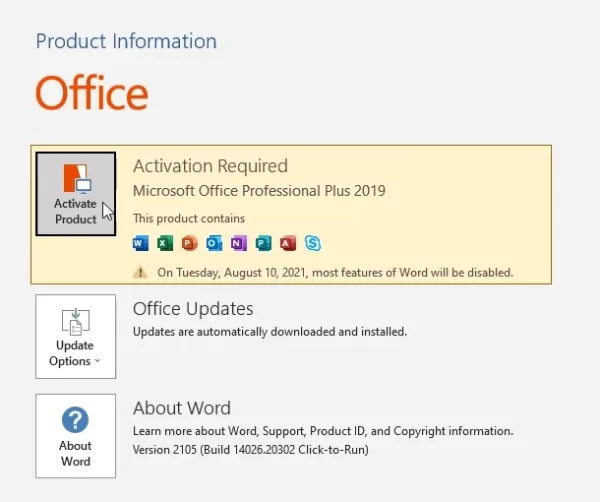
Open any Microsoft Office application, such as Word, Excel, or PowerPoint. Go to File and then click on Account.
Access the activation window:
Click on the “File” tab and select “Account” from the menu. In the Account section, locate and click the “Activate Product” button.
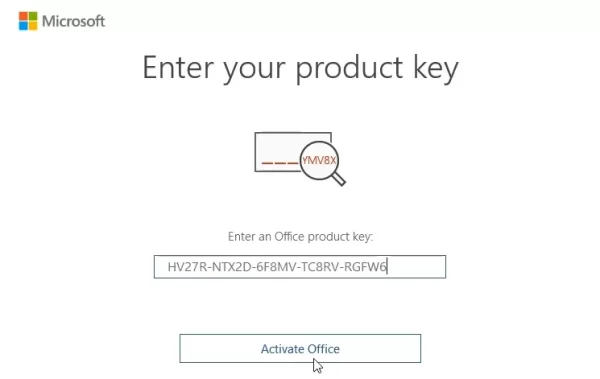
Enter your product key:
Carefully enter your Office Professional Plus 2019 product key in the designated field. This key unlocks the full functionality of the software.
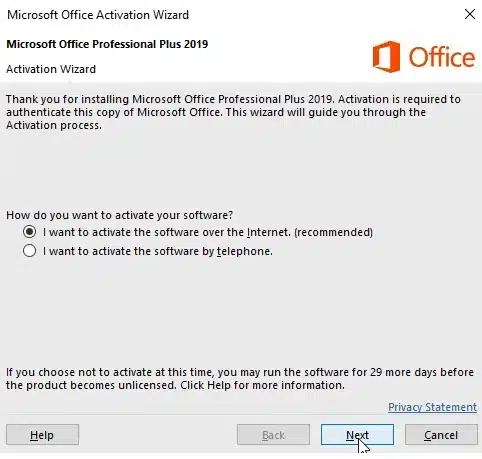
Complete the activation process:
Once the product key has been entered, follow the on-screen instructions to finalize the activation process. Your Office Professional Plus 2019 is now ready for use.
Congratulations! You have successfully downloaded, installed, and activated Microsoft Office Professional Plus 2019. You are now equipped with the tools to enhance your productivity, creativity, and collaboration. Enjoy the power of Microsoft Office Professional Plus 2019 as you tackle your tasks and achieve your goals.
Step 1: Prepare Your Computer – Ensure System Compatibility:
Before diving into the installation, make sure your computer meets the minimum system requirements for Office Professional Plus 2016. This will ensure smooth performance and optimal functionality.
Get your product key:
Find your Office Professional Plus 2019 product key in the purchase confirmation email.
Step 2: Download Office
Visit the official Microsoft Office website and complete the Office download.
Click the “Download” button to start the download process. Please be patient as the software is being downloaded to your computer.
Locate the downloaded file:
After the download is complete, locate the downloaded file — usually named “setup.exe” — in your Downloads folder or the designated download location.
Run the installation wizard:
Double-click the “setup.exe” file to begin the installation process. Carefully follow the on-screen instructions and accept the license terms and agreements.
Customize installation options:
If you wish to select specific Office applications or change the installation path, click “Customize” during setup and adjust the options according to your preferences.
Complete the installation:
Click “Install” to begin the installation process and wait until it finishes. This may take several minutes depending on your computer’s performance.
Step 4: Activate Office Pro Plus 2016 – Launch an Office Application:
Open any Microsoft Office application, such as Word, Excel, or PowerPoint. Go to File, then click on Account (located in the left sidebar).
Access the activation window:
Click on the “File” tab and select “Account” from the menu. In the Account section, locate and click the “Activate Product” button.
Enter your product key:
Carefully enter your Office Professional Plus 2016 product key into the designated field. This key unlocks the full functionality of the software.
Complete the activation process:
Once the product key has been entered, follow the on-screen instructions to finalize the activation process. Your Office Professional Plus 2016 is now ready for use.
Congratulations! You have successfully downloaded, installed, and activated Microsoft Office Professional Plus 2016. You are now equipped with the essential tools to boost your productivity, creativity, and collaboration. Enjoy the power of Microsoft Office Professional Plus 2016 as you tackle your tasks and achieve your goals.






 Microsoft Products
  Security
  Design and Multimedia





















 CAD and Design